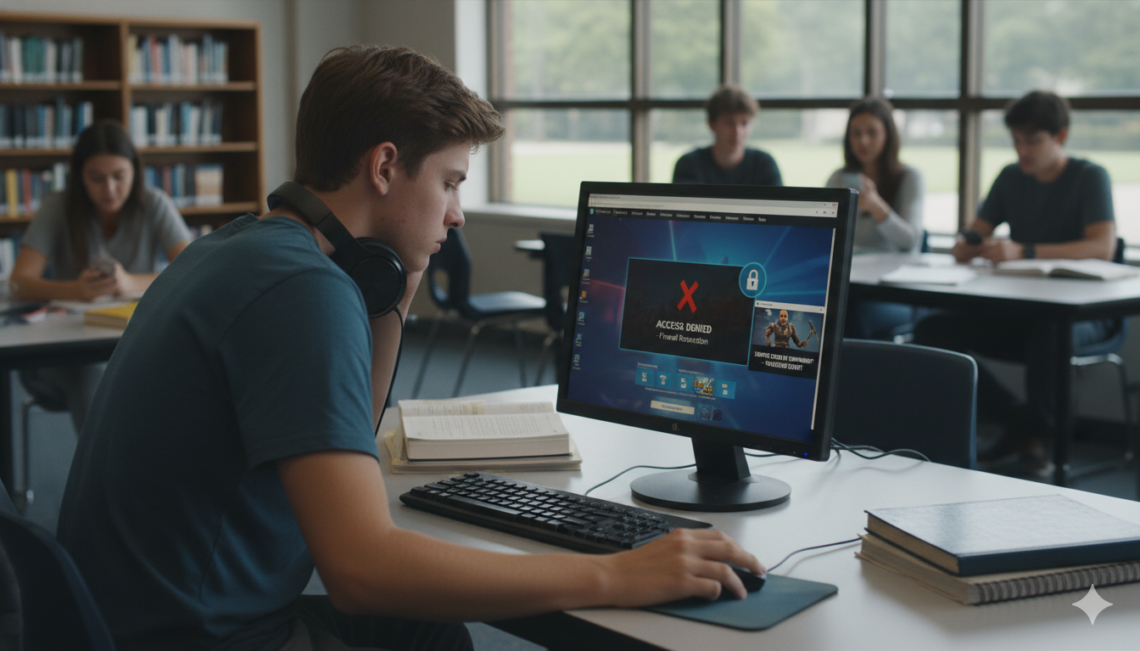
Let’s face it: sitting through a long study hall or a boring lunch break can make you really want to drop into the island for a quick match. Fortnite remains one of the absolute biggest games in the world, bringing us incredible crossovers, intense Zero Build matches, and endless creative modes. But if you are using a school or workplace computer, you have probably run into a major roadblock. The school Wi-Fi firewall blocks your connection, or the computer will not let you download the Epic Games Launcher.
If you see a “website blocked” screen, do not worry. You do not need to be a computer genius to get around these restrictions. In this complete guide, we will break down the safest, easiest, and most reliable ways to access fortnite unblocked platforms without getting into trouble or ruining your device. We will look at official browser-based cloud streaming, secure virtual private networks, and alternative network tricks that will have you chasing a Victory Royale in no time.
Why Do Schools Block Fortnite?
School networks are designed with strict rules for a few specific reasons. First, the school IT administrators want to make sure students are paying attention to their lessons instead of looking for a fortnite unblocked web link. Second, online gaming requires a massive amount of network data. If dozens of students are streaming a high-definition battle royale match at the same time, it can slow down the internet for everyone else who is trying to do actual schoolwork.
Finally, security is a major concern for school tech teams. They block unknown game downloads and shady websites to protect school laptops from dangerous malware and viruses. Understanding these network limits is important because it helps you choose smart, safe workarounds that will not harm your school device or compromise your private login details.
The Danger of Shady “Unblocked Game” Sites
If you search the web for free game sites, you will see a lot of random pages claiming to host a browser version of Fortnite. Be very careful with these. Real Fortnite is a highly advanced, massive 3D game built on Unreal Engine 5. It cannot run naturally inside a basic, sketchy website.
Most of these third-party links are actually just hosting low-quality clones, or worse, they hide intrusive pop-up ads and dangerous tracking scripts. Trying to log into your real Epic Games account on an unverified web page can result in your account getting stolen. To enjoy the real game safely, you should always stick to the official cloud gaming methods we outline below.
Method 1: Xbox Cloud Gaming (The Best Free Solution)
The absolute best way to play fortnite unblocked on a locked-down Chromebook or school laptop is through official cloud gaming. Microsoft offers Fortnite completely free on their streaming platform, meaning you do not even need an active Xbox Game Pass subscription to play.
Because the entire game streams from Microsoft’s massive servers directly into your web browser, your computer does not need to download a single file. As long as your school firewall hasn’t blocked the main Xbox domain, you can just log into a free Microsoft account, connect a controller or use your keyboard, and start playing instantly. It handles all the heavy graphic lifting for you, making it perfect for low-end school devices.
Method 2: GeForce NOW Browser Streaming
Another incredibly powerful option for high-quality browser streaming is NVIDIA GeForce NOW. This cloud service hooks directly into your existing Epic Games Store account. This means all of your hard-earned skins, battle pass progress, and V-Bucks carry over perfectly while you play.
GeForce NOW has a great free tier that lets you play the full PC performance version of the game in short sessions. It is highly optimized for devices like Chromebooks, requiring just a solid internet connection to stream smooth frame rates. If your school allows access to the GeForce NOW web portal, you can bypass local computer restrictions entirely without needing admin access to install apps.
Method 3: Using a Secure VPN with Obfuscation
If your school network has blocked cloud gaming sites entirely, your best bet is to use a high-quality Virtual Private Network (VPN). A VPN works by completely scrambling and encrypting your internet traffic. It builds a private digital tunnel between your laptop and a secure outside server, hiding exactly what websites you are trying to visit.
When you use a VPN on school Wi-Fi, the network filter cannot see that you are launching Fortnite or visiting a gaming hub; it only sees randomized, secure data. For the best results on strict school firewalls, you should look for a premium VPN service that features “obfuscation” or stealth protocols. This special feature disguises your VPN connection as normal, everyday web browsing traffic so the school firewall does not automatically flag and block it.
Method 4: Switch to a Reliable Mobile Hotspot
When the school network restrictions are simply too tough to crack, the easiest workaround is to hop off the school Wi-Fi network altogether. You can easily turn your smartphone into a portable Wi-Fi hotspot through your phone’s cellular settings menu, then connect your school Chromebook directly to that new personal network.
Because you are using your own cellular 4G or 5G data plan, the school’s strict content filters and firewalls do not apply to your device at all. However, you must keep a very close eye on your data usage. Streaming a fast-paced multiplayer game like Fortnite over a mobile hotspot can consume around 100 megabytes of data per hour, which can drain a limited data plan surprisingly fast.
Unblocked Fortnite Methods Comparison
To help you figure out which strategy fits your current situation best, we have put together a quick breakdown of the safest and most reliable methods available right now.
| Method | Cost | Software Install Required? | Best Used For |
| Xbox Cloud Gaming | 100% Free | No (Runs entirely in browser) | Chromebooks and low-end school laptops |
| GeForce NOW | Free / Paid Tiers | No (Has an excellent web version) | Keeping your native Epic Games account progress |
| Premium VPN | Requires Subscription | Yes (App or Chrome Extension) | Bypassing tough network firewalls and filters |
| Mobile Hotspot | Uses Phone Data | No (Changes your network connection) | Bypassing school Wi-Fi rules completely |
Tips for Smooth, Lag-Free Cloud Gameplay
Playing a fast-paced multiplayer battle royale requires a very quick, responsive internet connection. If your cloud game feels choppy or suffers from annoying input lag, there are a few simple tricks you can try to clean up the performance. First, try closing out any unnecessary browser tabs or background apps that might be hogging your computer’s memory.
If you are using a personal laptop on an open network, switching from Wi-Fi to a plugged-in Ethernet cable will instantly stabilize your connection. Lastly, inside your cloud gaming platform’s settings menu, try lowering the stream resolution down to 720p. This small tweak greatly reduces the amount of data your computer has to process, giving you a much smoother frame rate during chaotic build fights.
Play Responsibly and Respect School Property
While finding a working fortnite unblocked link is an awesome feeling, it is incredibly important to stay smart and safe. Never use dangerous methods like hacking into the Chromebook’s “Developer Mode” or running unverified executable files, as these actions can permanently break school property or get you banned from the school network entirely.
Always protect your personal information by avoiding random, shady websites that ask for your Epic Games password or personal details. Keep your gaming limited to your free time, lunch breaks, or after-school hours so you can keep your grades up while still enjoying your favorite games safely.
Frequently Asked Questions
Can I play Fortnite on a school Chromebook without downloading it?
Yes, you absolutely can. By utilizing official cloud services like Xbox Cloud Gaming or GeForce NOW, the entire game streams directly inside a standard Google Chrome web browser. This means you do not have to download or install any files onto your school storage.
Why do some unblocked game websites look different from real Fortnite?
Most of the random websites claiming to host an unblocked version of the game are actually running fan-made clones or basic shooting mini-games. The real version of Fortnite can only be accessed through Epic Games or official cloud streaming platforms.
Is it safe to use a completely free VPN at school?
Generally, completely free VPNs are not recommended for gaming. They often have very slow connection speeds, strict monthly data caps, and might even log your private browsing habits to sell to advertisers. A trusted, premium service is always much safer.
Will playing Fortnite on a mobile hotspot use up all my data?
Playing the game via cloud streaming or online matchmaking uses roughly 100MB to 150MB of data per hour. If you have a strict or limited mobile data cap on your phone plan, this can add up quickly over a week of casual gaming.
What should I do if Xbox Cloud Gaming is blocked by my school?
If the school firewall has blocked the main Xbox website, you can try using GeForce NOW in your browser, or use a secure VPN browser extension to mask your web activity and bypass the school’s filter.
Can my school see if I am using a VPN on their Wi-Fi network?
School network administrators can usually see that a device is connected to a VPN server, but they cannot see the actual websites you are visiting or the games you are playing while the encrypted tunnel is active.
Conclusion: Drop Into the Action Safely
Getting around school network blocks to access fortnite unblocked options is entirely possible if you use the right tools. Stick to safe, reliable paths like official cloud streaming through your browser or protecting your network connection with a secure VPN. This keeps your personal accounts completely safe from malware while letting you drop into your favorite game modes during your free time.
Which method worked best on your school network? Have you managed to grab a Victory Royale from a Chromebook browser yet? Let us know your thoughts, stay safe online, and good luck out there on the island!